^
MySql安装步骤图文教程及中文乱码的解决方案
2016年12月23日
MySql Server安装步骤如下所示:
1安装MySql Server

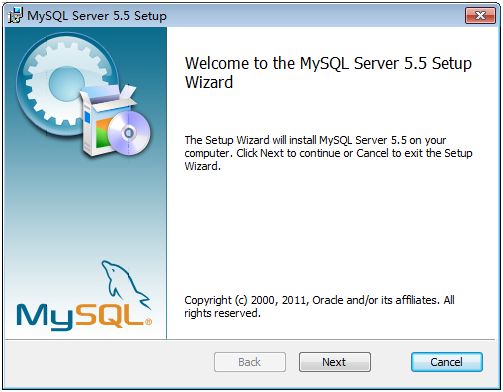
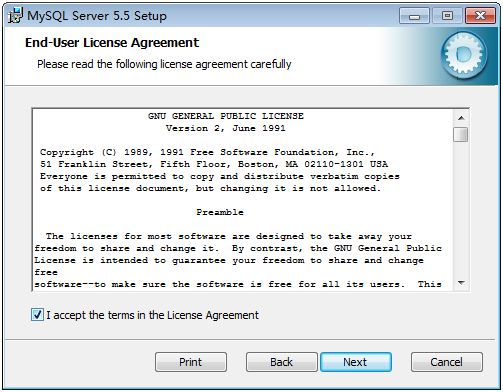
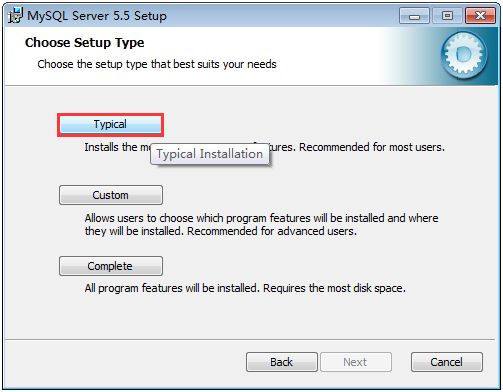
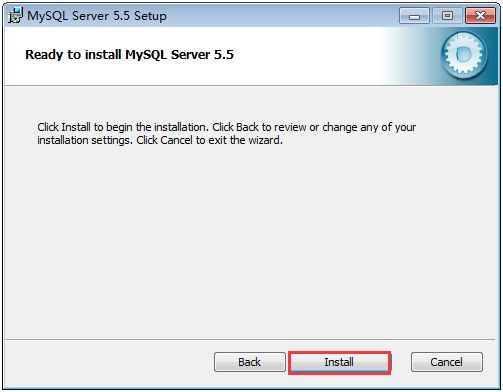
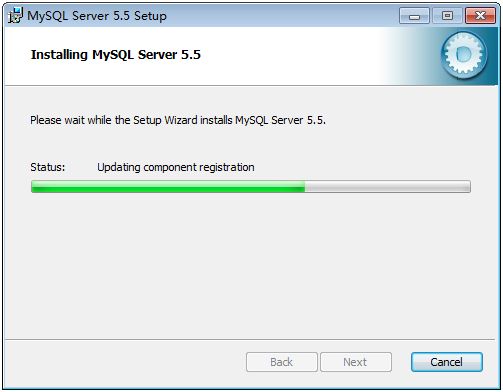
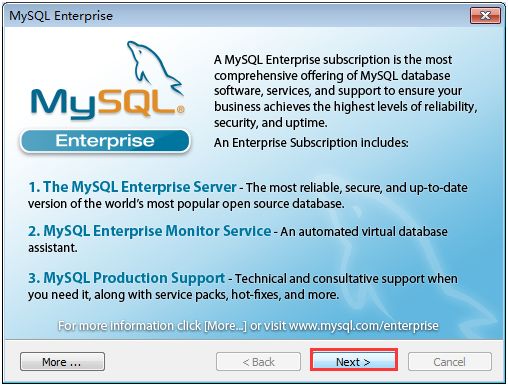
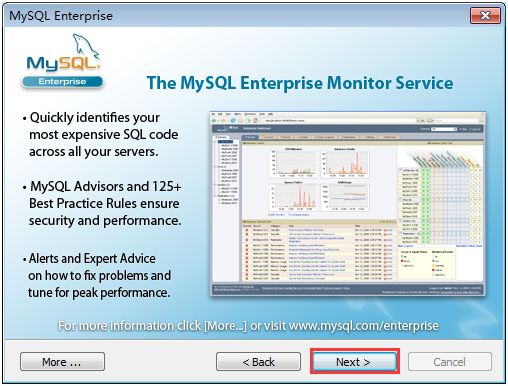
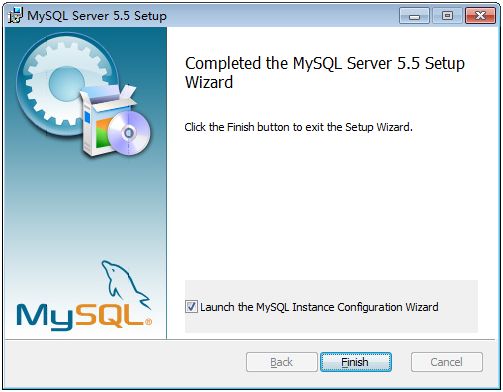
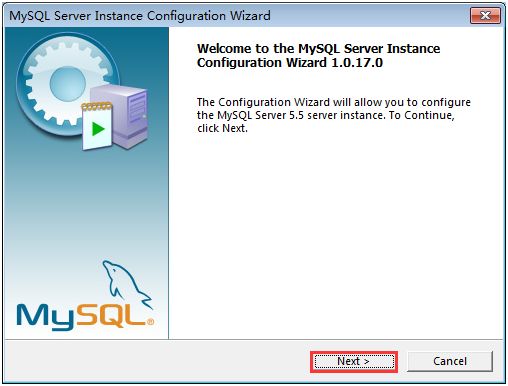
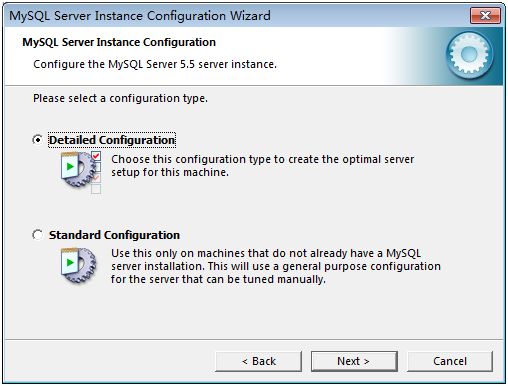
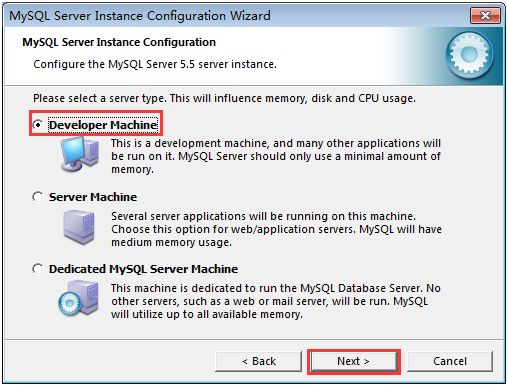
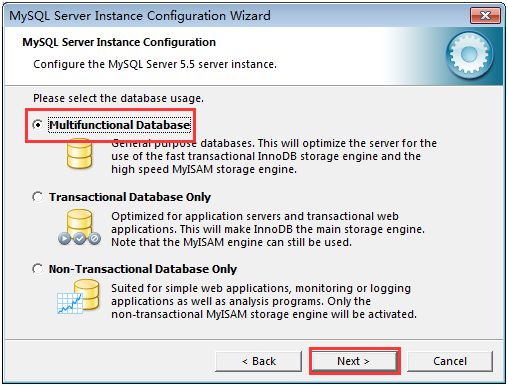
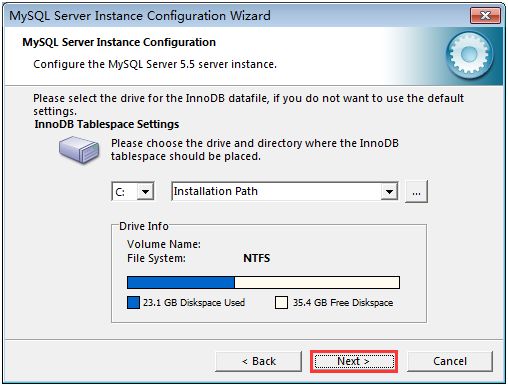
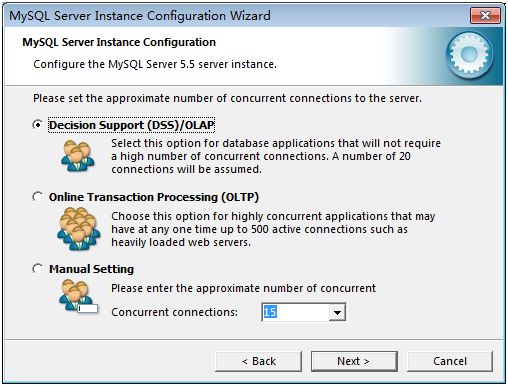
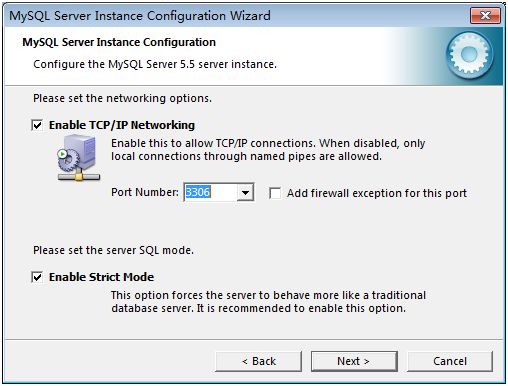
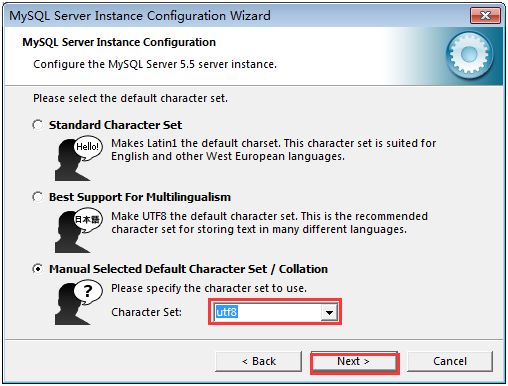
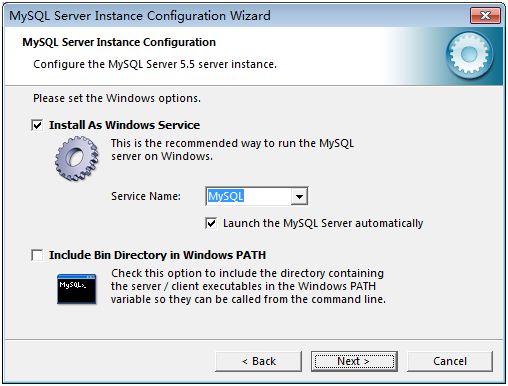
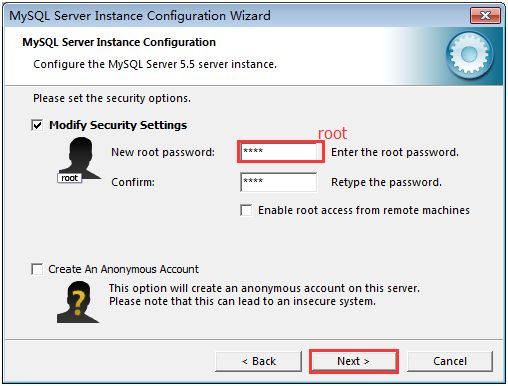
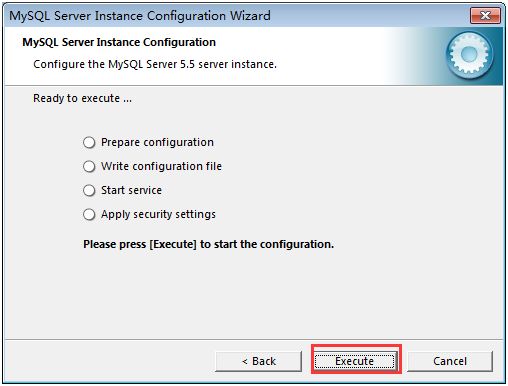
2 安装MySqlServer管理工具
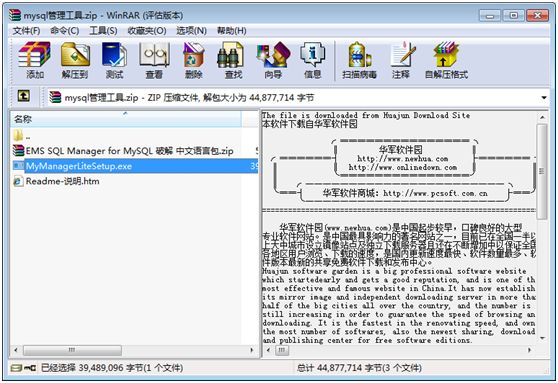
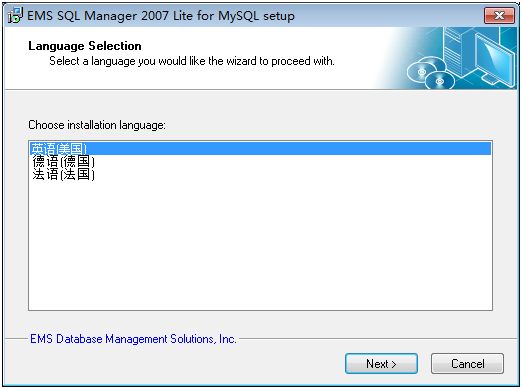
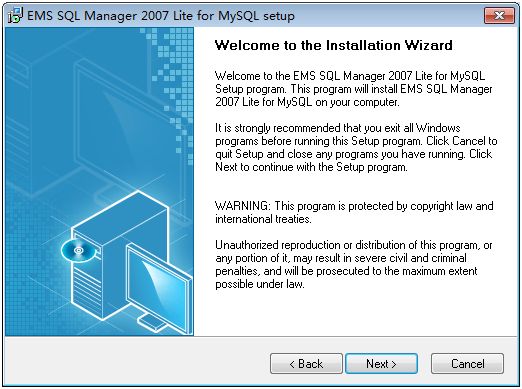
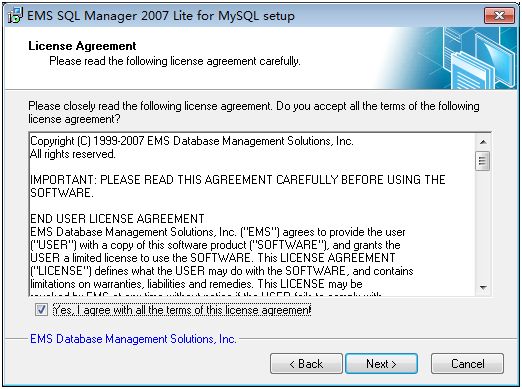
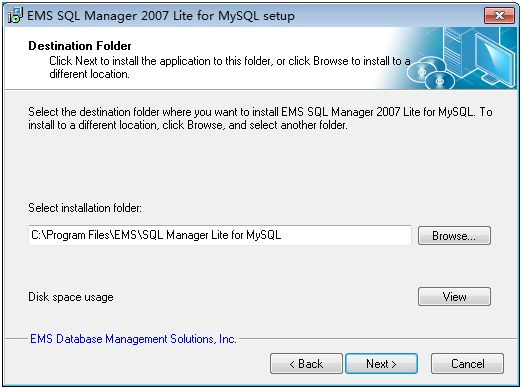
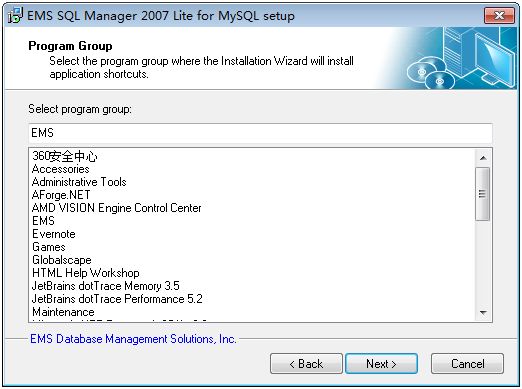
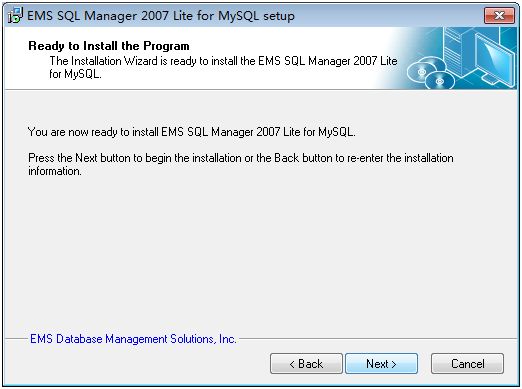
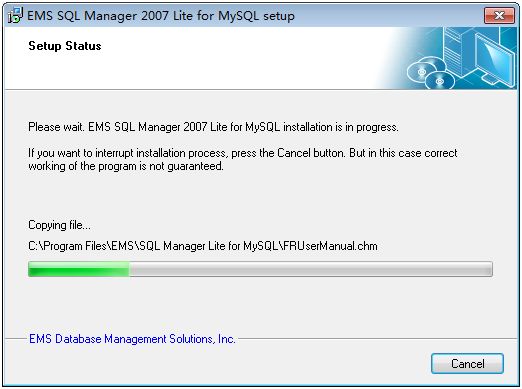
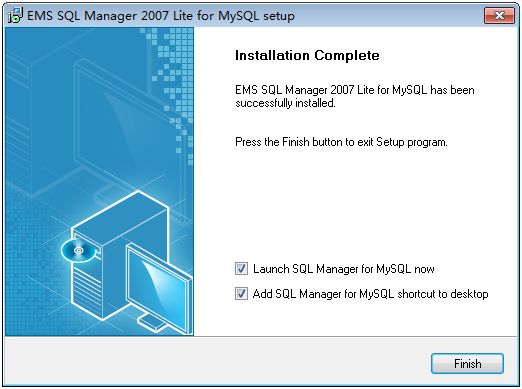
解压中文语言包,将文件复制到安装目录下覆盖
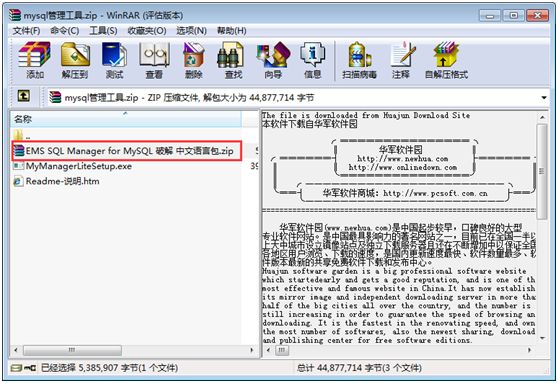
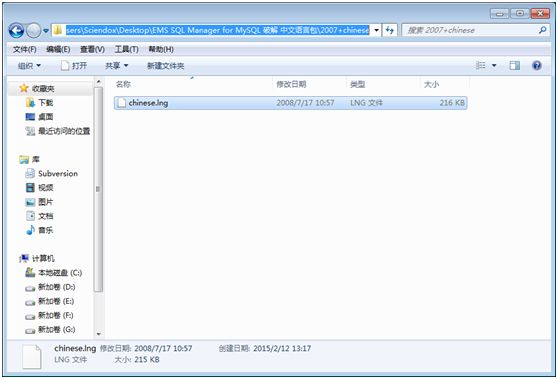
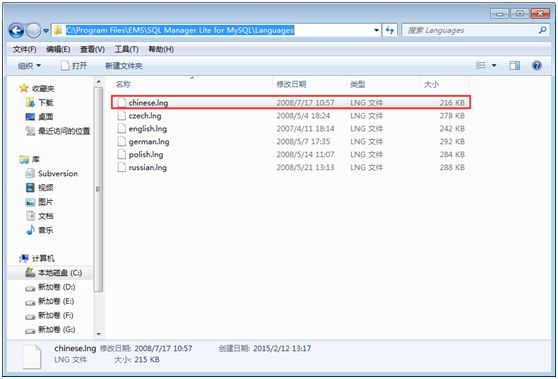
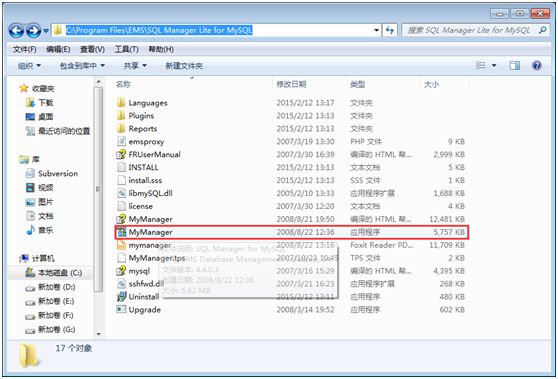
文件覆盖后,打开软件设置语言为中文(CN)
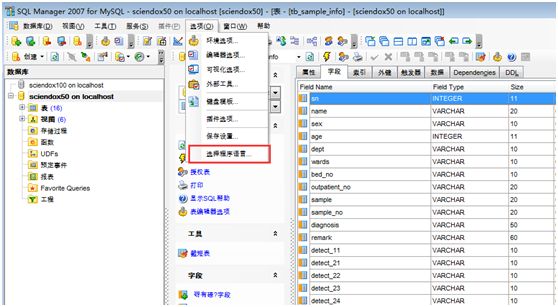
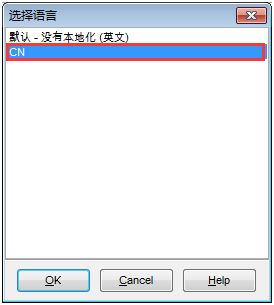
3 MySqlServer开发注意事项(C#)
1.联接字符串:"Server=localhost;Database=100;Uid=root;Pwd='root'"
2.引用MySql.Data.dll;using MySql.Data.MySqlClient;
3.使用MySqlConnection、MySqlParameter、MySqlDataAdapter、MySqlCommandBuilder、MySqlCommand、MySqlDataAdapter、MySqlTransaction等类
5.使用MySqlCommand. ExecuteScalar()方法返回的object如果要转为int类型,必须使用Convert来强制转换,否则可能会出错。
6.修改记录时,字段数据类型如果为Bit类型的时候,Sql语句中的字段值要使用Ture或False,不能像SqlServer中一样使用0或1。
7.命令行工具:
public class Cmd { /// <summary> /// 执行Cmd命令 /// </summary> /// <param name="workingDirectory">要启动的进程的目录</param> /// <param name="command">要执行的命令</param> public static void StartCmd(String workingDirectory, String command) { Process p = new Process(); p.StartInfo.FileName = "cmd.exe"; p.StartInfo.WorkingDirectory = workingDirectory; p.StartInfo.UseShellExecute = false; p.StartInfo.RedirectStandardInput = true; p.StartInfo.RedirectStandardOutput = true; p.StartInfo.RedirectStandardError = true; p.StartInfo.CreateNoWindow = true; p.Start(); p.StandardInput.WriteLine(command); Thread.Sleep(10000); //p.StandardInput.WriteLine("exit"); } public static void StartCmd() { Process p = new Process(); p.StartInfo.FileName = "cmd.exe"; p.StartInfo.UseShellExecute = false; p.StartInfo.RedirectStandardInput = true; p.StartInfo.RedirectStandardOutput = true; p.StartInfo.RedirectStandardError = true; p.StartInfo.CreateNoWindow = true; p.Start(); p.StandardInput.WriteLine("net stop mysql"); Thread.Sleep(5000); p.StandardInput.WriteLine("net start mysql"); Thread.Sleep(5000); p.StandardInput.WriteLine("exit"); } }备份:
public static bool BackUp(string backupPath) { try { //构建执行的命令 StringBuilder sbcommand = new StringBuilder(); sbcommand.AppendFormat("mysqldump -f -l -q -uroot -proot Sciendox50 -r \"{0}\"", backupPath); String command = sbcommand.ToString(); //获取mysqldump.exe所在路径 String appDirecroty = @"C:\Program Files\MySQL\MySQL Server 5.5\bin\"; Cmd.StartCmd(appDirecroty, command); Cmd.StartCmd();//重启mysql服务 MessageBox.Show(@"数据库已成功备份到 " + backupPath + " 文件中", "提示", MessageBoxButtons.OK, MessageBoxIcon.Information); return true; } catch (Exception) { MessageBox.Show("数据库备份失败!"); return false; } }还原:
/// <summary> /// 数据还原 /// </summary> /// <param name="FilePath">文件路径</param> /// <returns></returns> public static bool RestoreDB(string FilePath) { try { StringBuilder sbcommand = new StringBuilder(); //在文件路径后面加上""避免空格出现异常 sbcommand.AppendFormat("mysql -uroot -proot Sciendox50 <\"{0}\"", FilePath); String command = sbcommand.ToString(); //获取mysql.exe所在路径 String appDirecroty = @"C:\Program Files\MySQL\MySQL Server 5.5\bin\"; DialogResult result = MessageBox.Show("您是否真的想覆盖以前的数据库吗?那么以前的数据库数据将丢失!!!", "警告", MessageBoxButtons.YesNo, MessageBoxIcon.Warning); if (result == DialogResult.Yes) { Cmd.StartCmd(appDirecroty, command); Cmd.StartCmd();//重启mysql服务 MessageBox.Show("数据库还原成功!"); return true; } return false; } catch (Exception) { MessageBox.Show("数据库还原失败!"); return false; } }以上所述是小编给大家介绍的MySql安装步骤图文教程及中文乱码的解决方案,希望对大家有所帮助,如果大家有任何疑问请给我留言,小编会及时回复大家的。在此也非常感谢大家对网站的支持!
相关阅读
Mysql5.5安装配置方法及中文乱码的快速解决方法
C3P0连接池+MySQL的配置及wait_timeout问题的解决方法
-
MySQL数据库优化技术之配置技巧总结
-
Linux上通过binlog文件恢复mysql数据库详细步骤
-
Mysql5.7.11在windows10上的安装与配置(解压版)
-
MySQL中实现插入或更新操作(类似Oracle的merge语句)
-
MySQL与Mongo简单的查询实例代码
-
MySql 5.7.14 解压版安装步骤详解
-
MySQL中interactive_timeout和wait_timeout的区别
-
Centos 6.5 下安装mysql 5.6.21的方法
-
MySQL外键使用及说明详解
-
Mysql 下中文乱码的问题解决方法总结